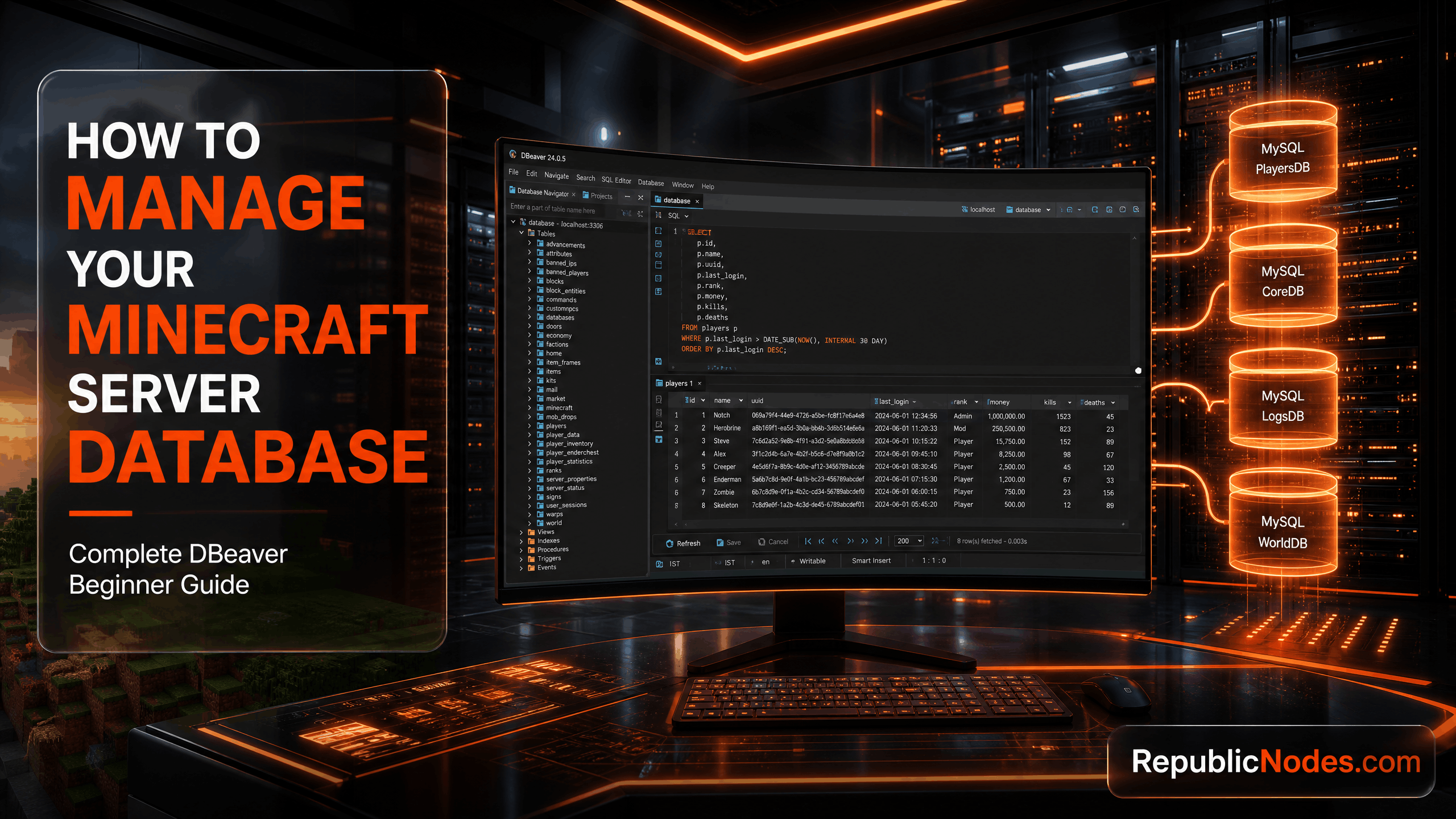
How to Manage Your Minecraft Server Database with DBeaver (Beginner's Guide)
Learn how to connect, manage, import, export, and back up your Minecraft server database using DBeaver. A complete beginner-friendly guide for RepublicNodes customers.
🗄️ How to Manage Your Minecraft Server Database with DBeaver
Many Minecraft plugins store important data inside a MySQL or MariaDB database. Using a database management tool like DBeaver makes it easy to view, edit, back up, and restore your data without using the command line.
In this guide, we'll show you how to connect your RepublicNodes database and safely manage it using DBeaver.
What is DBeaver?
DBeaver is a free, open-source database management application that supports many database engines, including:
- MySQL
- MariaDB
- PostgreSQL
- SQLite
- SQL Server
- Oracle
For most Minecraft servers, you'll be using MySQL or MariaDB.
Why Use DBeaver?
Instead of writing SQL commands manually, DBeaver provides an easy-to-use graphical interface.
With DBeaver you can:
- ✅ View plugin databases
- ✅ Browse tables
- ✅ Search player data
- ✅ Import SQL backups
- ✅ Export databases
- ✅ Execute SQL queries
- ✅ Edit rows safely
- ✅ Create backups before making changes
Requirements
Before you begin, make sure you have:
- Database Host
- Database Name
- Database Username
- Database Password
- Database Port (usually 3306)
These details can be found in your RepublicNodes control panel under the Databases section.
Step 1: Download DBeaver
Download the free Community Edition from the official DBeaver website.
Install the application and launch it.
Step 2: Create a New Database Connection
Click New Database Connection.
Select MySQL (or MariaDB if applicable).
Click Next.
Step 3: Enter Your Database Details
Fill in the following information:
- Host
- Port
- Database Name
- Username
- Password
Double-check your credentials before continuing.
Step 4: Test the Connection
Click Test Connection.
If the details are correct, you'll see a successful connection message.
Click Finish to save the connection.
Step 5: Explore Your Database
Once connected, you'll see your database in the left sidebar.
Expand it to view:
- Tables
- Views
- Stored Procedures
- Functions
Most Minecraft plugins create their own tables automatically.
Examples include:
- LuckPerms
- CoreProtect
- LiteBans
- EssentialsX
- Geyser
- Floodgate
- Economy plugins
Export Your Database
Creating regular backups is recommended.
To export your database:
- Right-click your database.
- Select Tools → Export Database.
- Choose SQL as the format.
- Select a save location.
- Start the export.
Your database backup is now saved.
Import a Database
To restore an existing backup:
- Create or select the destination database.
- Open Tools → Execute SQL Script.
- Choose your
.sqlbackup file. - Execute the script.
After the import is complete, restart your server if necessary.
Running SQL Queries
Open the SQL Editor to execute custom queries.
Example:
SHOW TABLES;
This displays every table in your database.
To view records from a table:
SELECT * FROM players;
Always review your queries before running UPDATE or DELETE commands.
Best Practices
- Always create a backup before editing data.
- Never share your database password.
- Avoid deleting tables unless you understand their purpose.
- Test changes on a backup whenever possible.
Common Connection Problems
Access Denied
Check your username and password.
Connection Timed Out
Verify the database host and port.
Ensure your server is online.
Unknown Database
Confirm that the database name matches the one shown in your control panel.
Authentication Failed
Reset your database password from the control panel and try again.
Frequently Asked Questions
Is DBeaver free?
Yes. The Community Edition is completely free to use.
Can I edit plugin data?
Yes, but always create a backup first.
Can I import SQL backups?
Yes. DBeaver supports importing standard SQL dump files.
Can I export my entire database?
Yes. You can export your complete database or individual tables.
Need Help?
If you have trouble connecting your database or managing your server, our support team is here to help.
Open a support ticket:
https://republicnodes.com/tickets
We'll be happy to assist you with your database setup and answer any questions.